Last Revised: May 18, 2026
Completing a Hub Report
Info
The Hub - Hub Report & Dialogue Contributor User Role is required to complete a Hub Report.
Locate the Hub Report
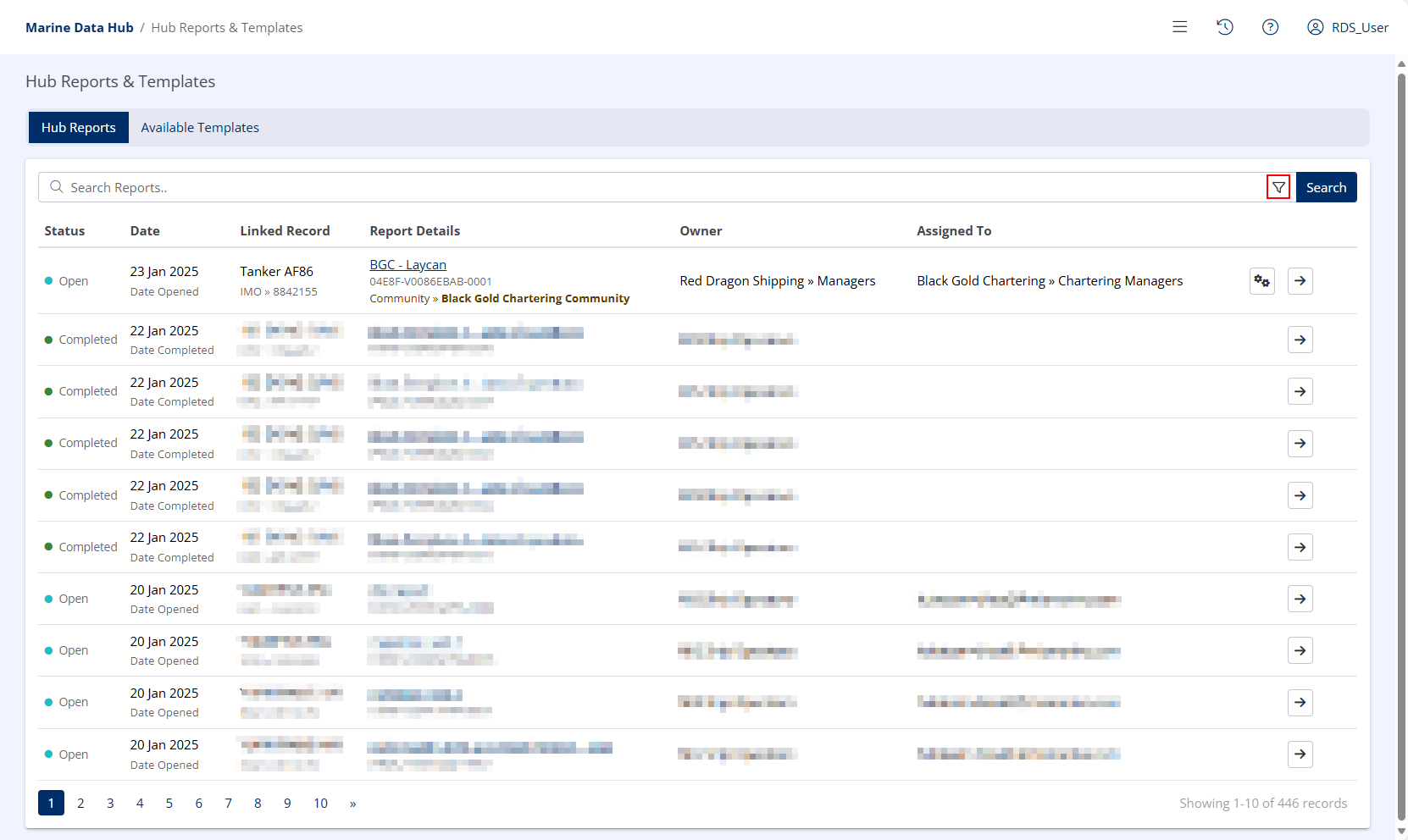
To view all assigned Hub Reports, click the Available Hub Data ( ) menu in the upper right of the Hub portal, and click Hub Reports & Templates in the menu that appears.
The Hub Reports & Templates page lists all Hub Reports you own, you have assigned to other users, or attached to Hub Dialogues you are participating in.
To locate Reports assigned to you:
- Click the Show Advanced Filters button.
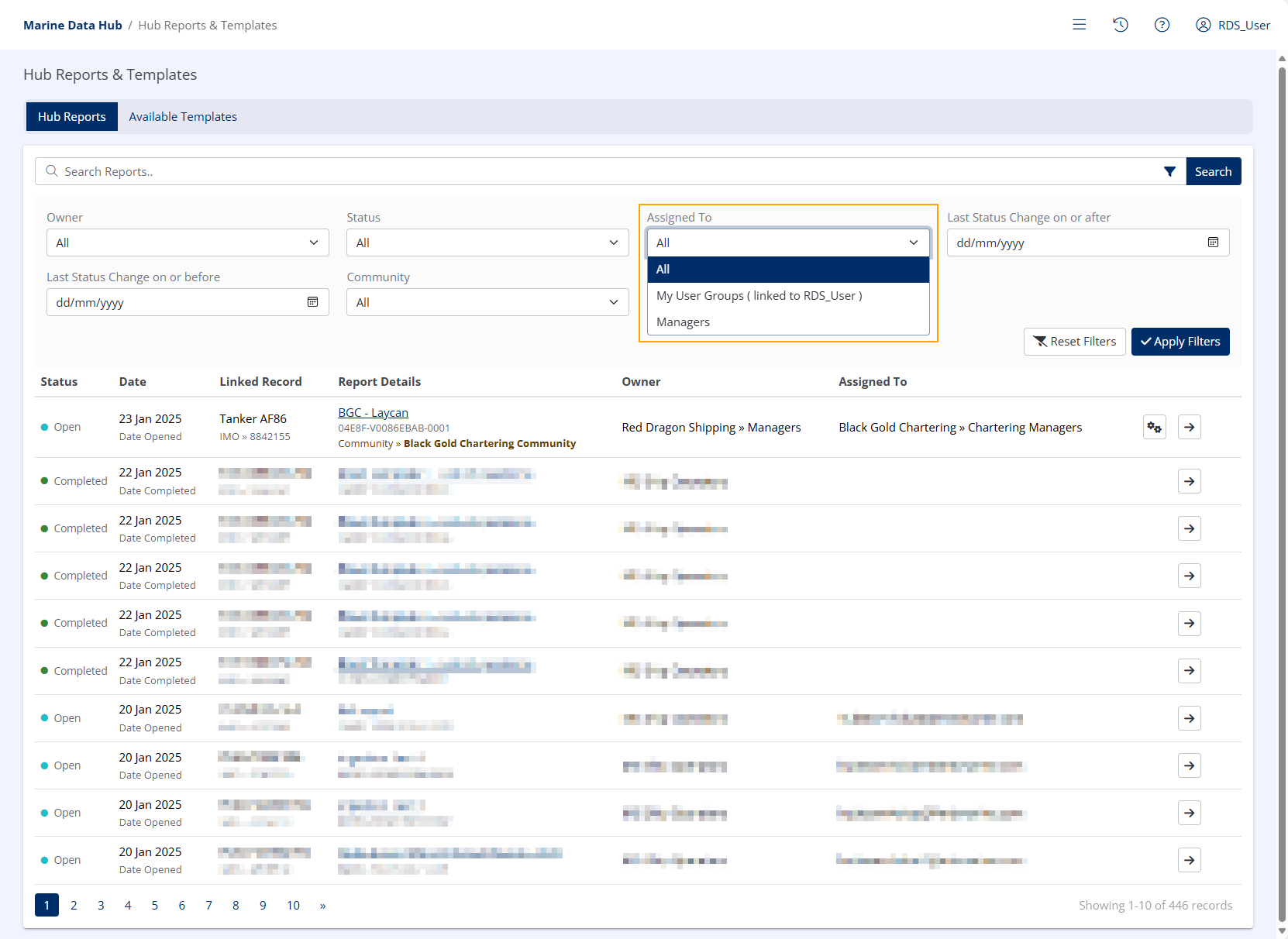
- Select the Assigned To drop-down field and;
or
- If your Organisation has User Groups configured, select My User Groups ( linked to USERNAME )
- If your Organisation does not have User Groups configured, Select your Organisation name.
Info
The Index will now be filtered to only display Reports requiring your input.
Complete the Report
Info
There is a companion app available to allow the completion of assigned Hub Reports on mobile devices.
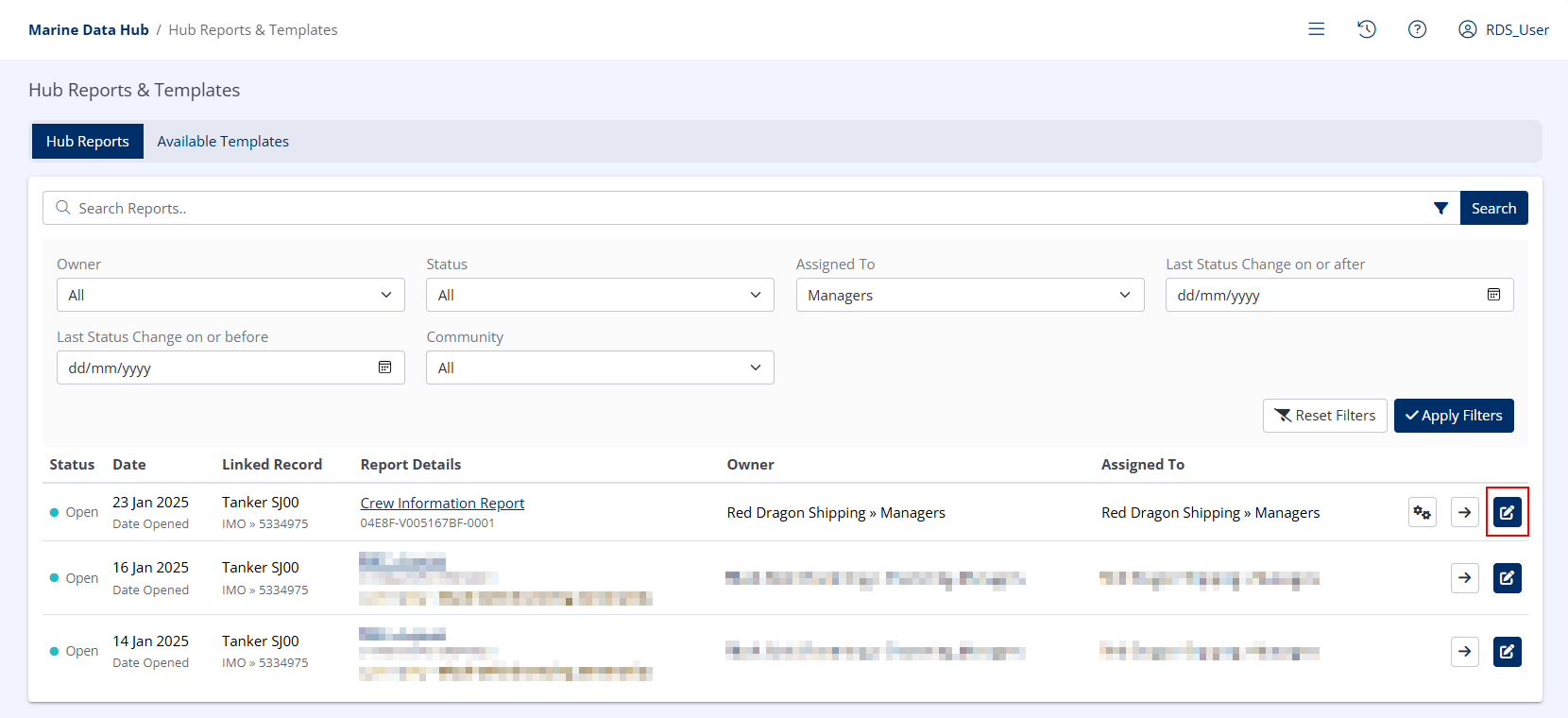
Once the desired Report has been located, click the Edit Report button.
Provide the required information. There may be multiple pages and several different question types depending on the specific Report.
Your progress will be saved, so you may return to a partially-complete Report at a later date.
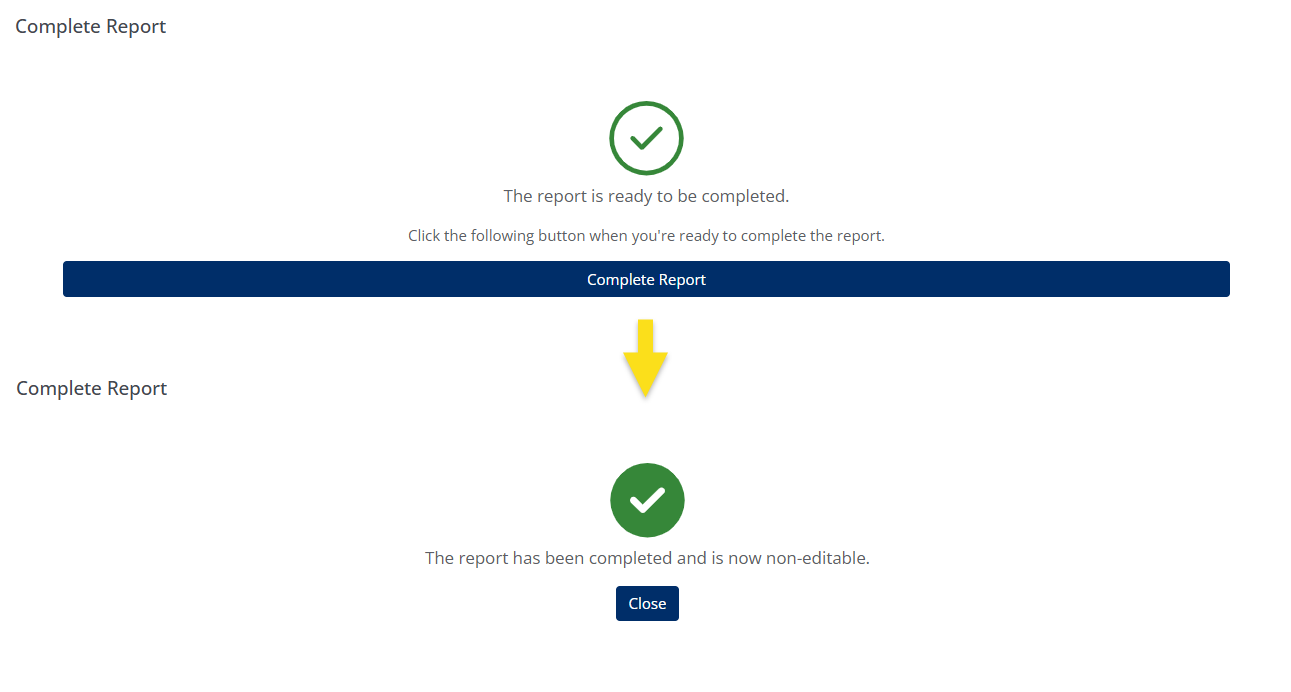
Depending on which Organisation created the Report, the completion step will differ slightly:
- Hub Reports created by other Organisations are submitted back to their creator upon completion for review.
- Hub Reports created by the Organisation the current user belongs to will be immediately completed.
Example Hub Report
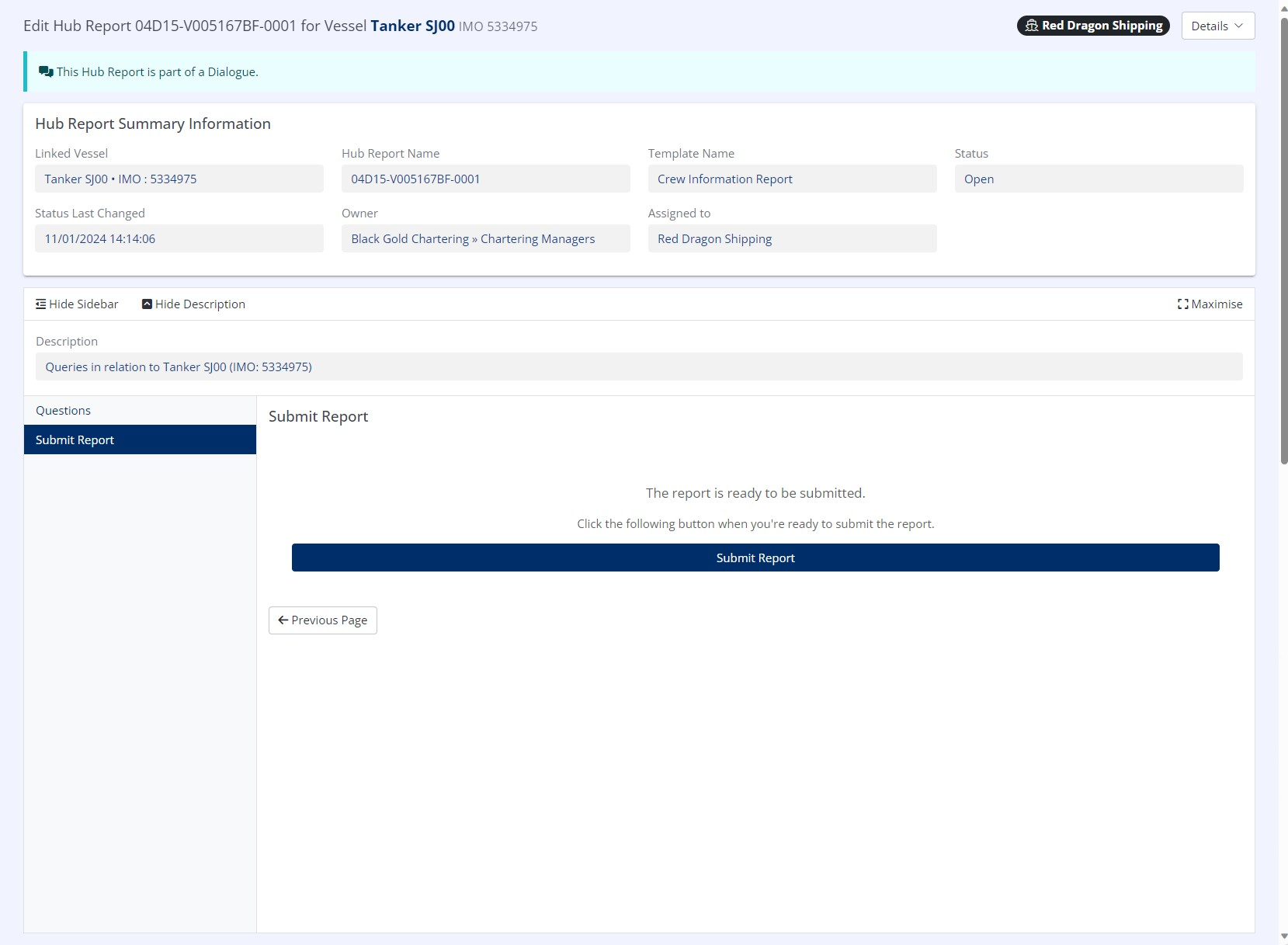
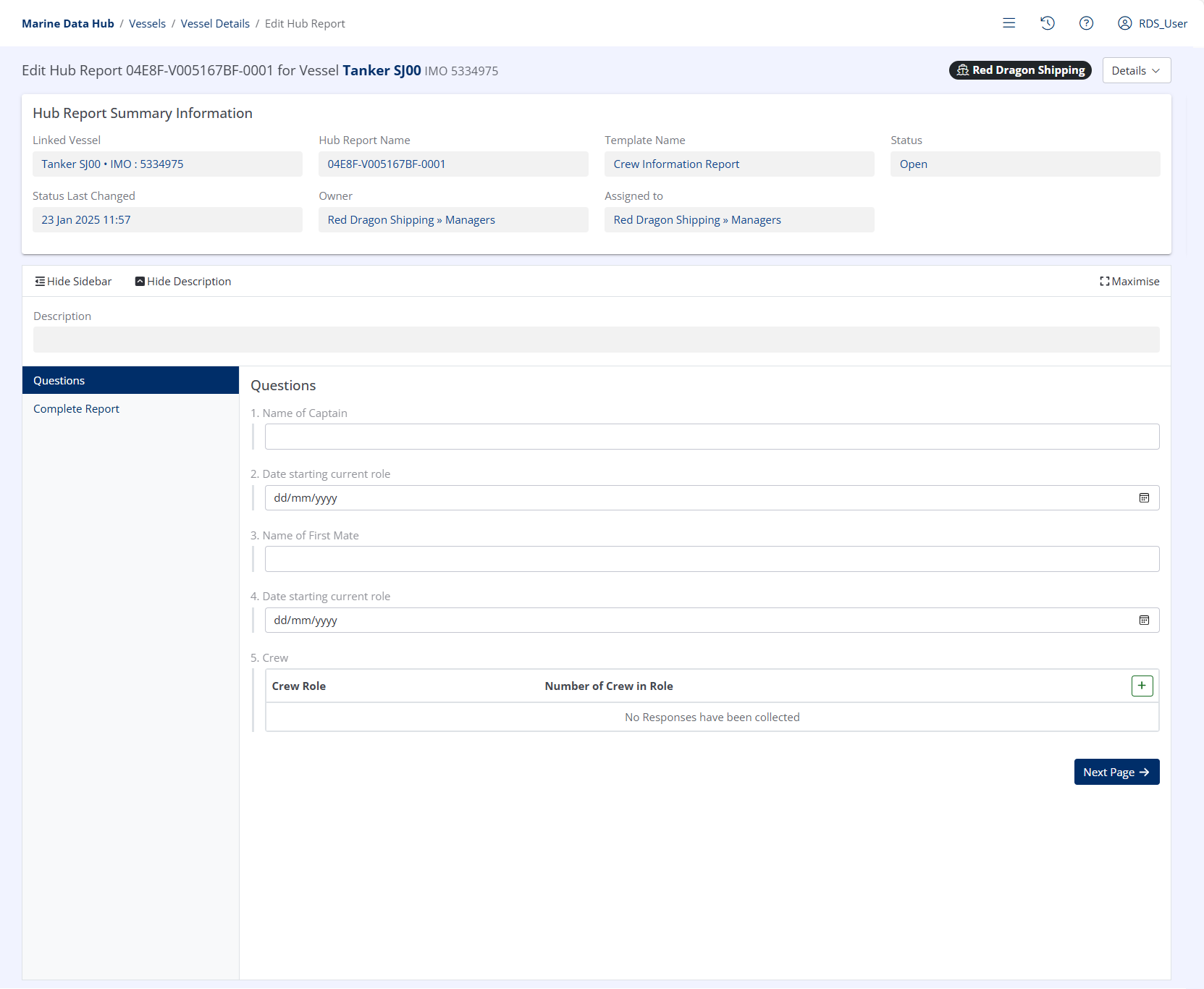
Hub Reports are highly customisable and can include many questions/pages. An example of a simple Hub Report is in the following screenshot.
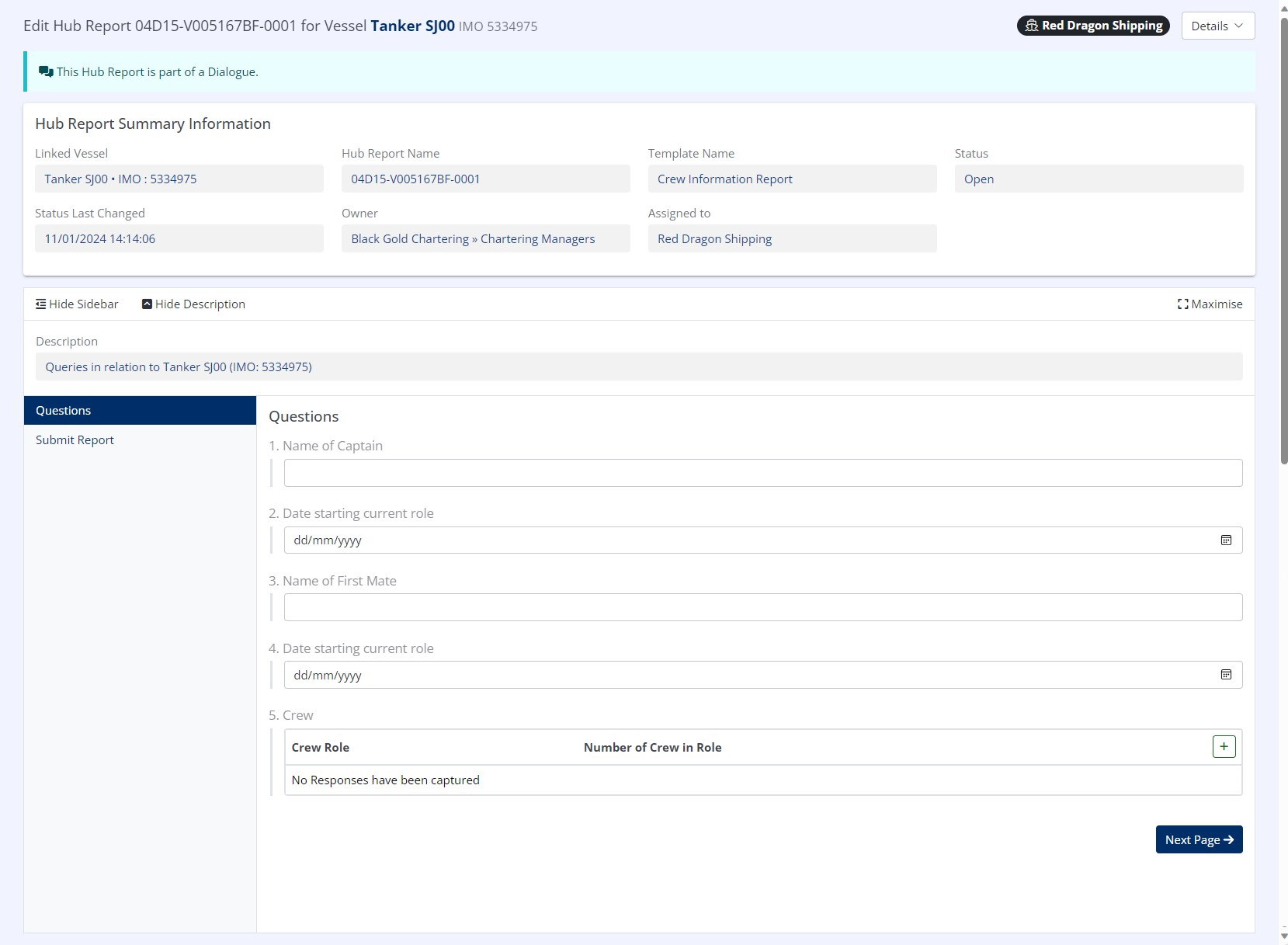
When all required questions have been completed, a Hub Report must be submitted back to the owner.