Last Revised: May 12, 2026
Notifications
Notifications are special types of Dialogue that serve as a one-way communication.
They are configured in the same way as Dialogues and similarly must be associated with an asset (vessel, terminal or company) but have the following notable exceptions:
- They cannot be replied to.
- They cannot have Hub Reports assigned within them.
- They will send an automatic e-mail message to all recipients in addition to the usual Hub Alert.
Sending a Notification
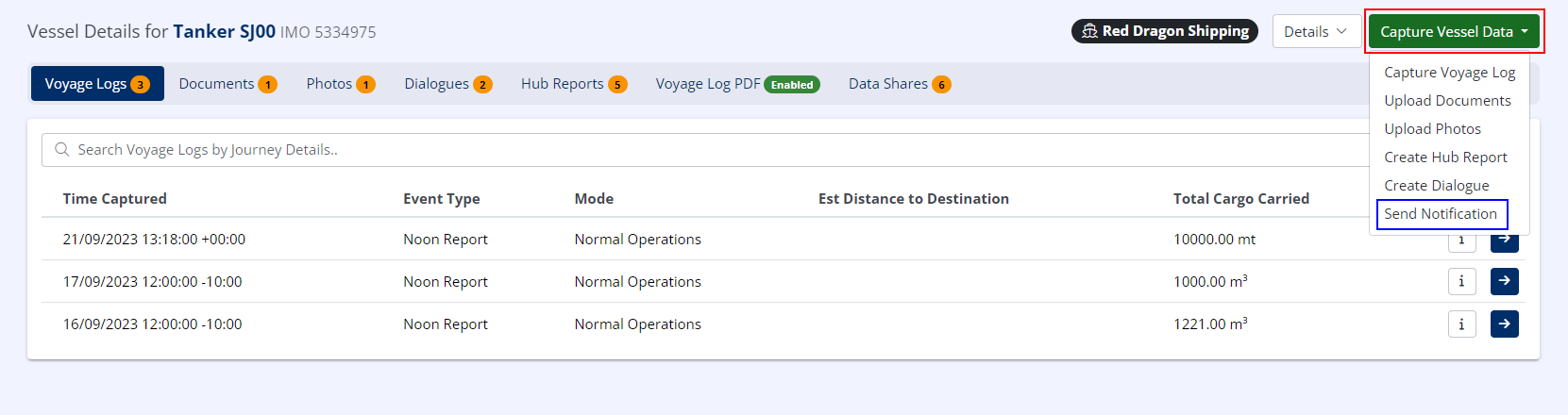
- Navigate to the relevant asset as per Creating a Dialogue.
- In the upper right, click Capture Vessel Data.
- In the drop-down menu that appears, click Send Notification.
The Send Notification Screen
Info
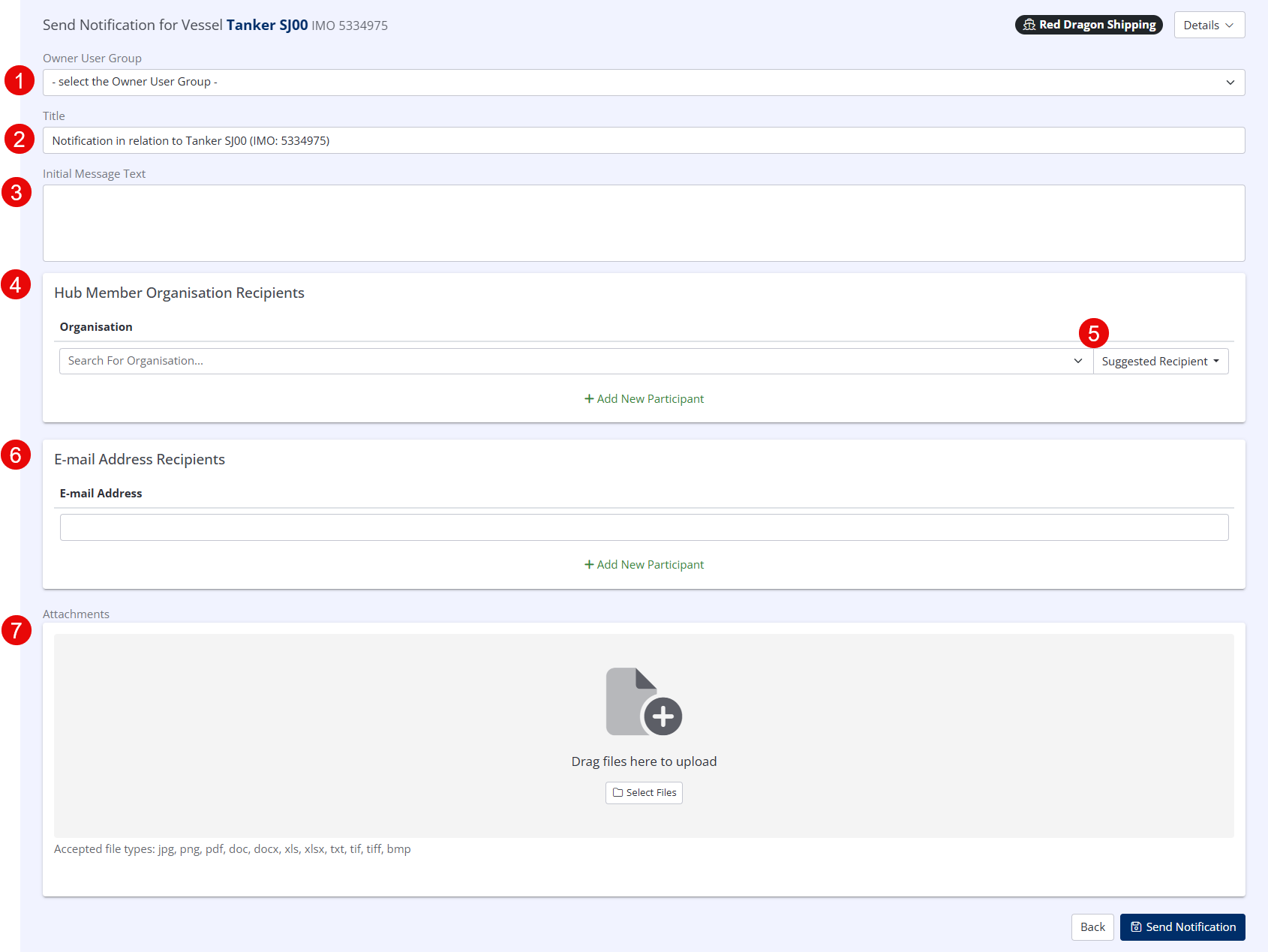
The Send Notification screen is a simplified version of the Create Dialogue screen, with irrelevant fields removed.
-
Owner User Group (1)
- If utilising User Groups, Specify the User Group in your organisation that will be the Notification owner.
-
Title (1)
- The Notification Title will automatically be populated as "Notification in relation to x", where x is the asset in question but this may be amended if necessary.
-
Initial Message Text (1)
- The Initial Message Text will be the first message that appears in the Notification.
-
Hub Member Organisation Recipients (1)
- Here you should select all the users registered on Hub that should receive the Notification.
-
Add Suggested Recipient (1)
- Hub will automatically suggest relevant Recipients for the Notification i.e. for a Vessel, Hub will suggest the Ship Operator, or recently selected Dialogue participants.
-
E-mail Address Recipients (1)
- Notification Recipients do not need to be registered on Hub. You may add any number of E-mail Recipients to a Notification.
-
Attachments (1)
- You may optionally attach any relevant files to the Notification by drag & dropping or selecting files from your device.